Troubleshooting a Frigate NVR issue
A configuration oversight casued my NVR to crash in a way that my alerting system failed to detect. Here's how I investigated and fixed it.
Introduction
I really enjoy these “lessons learned” type posts. Post-mortem analyses and real-world troubleshooting is a lot more valuable than showing off things that look good but aren’t battle-tested. This ended up being a pretty simple fix. With a bit more foresight during setup, it could’ve been avoided.
Background
I have a Frigate NVR system. The underlying hardware is a Dell Optiplex SFF with a boot drive and a data drive. It’s running Debian with a custom Dropbear-initramfs setup (more or less as described in this article) The operating system volume is LUKS-encrypted and OpenZFS is installed to manage the data storage.
This combination of tools allows me to:
- Encrypt all sensitive data-at-rest (when the system is offline, purely as a hedge against physical theft)
- Cold boot and unlock the system (which is headless) remotely
- Leverage ZFS features to manage system storage: tuning, quota management, snapshots, etc
Frigate NVR is deployed with Docker using ghcr.io/blakeblackshear/frigate:stable. Finally, a Checkmk agent is deployed on the host system to monitor system stats.
What went wrong?
Frigate stopped working and could not be reached via its friendly domain name or socket (protocol://ip:port). We noticed this when attempting to check the system to investigate Suspicious Feline Activity.
Troubleshooting
I pinged the system, which was up.
I SSH’d into the NVR and ran docker ps to examine the process:
user@nvr ~> docker ps
CONTAINER ID   IMAGE                                    COMMAND   CREATED        STATUS                         PORTS     NAMES
f4d551698c16   ghcr.io/blakeblackshear/frigate:stable   "/init"   3 months ago   Restarting (1) 2 seconds ago             frigate-nvr
So Discovery #1, the issue is crashing the application and not allowing it to start properly.
I ran docker compose down, then docker compose up to watch the startup process and found a very clear error:
frigate-nvr  | 2026-10-19 16:17:36.838420863  [INFO] Preparing new go2rtc config...
frigate-nvr  | ./run.user: line 76: /config/go2rtc_homekit.yml: No space left on device
frigate-nvr  | 2026-10-19 16:17:37.198883147  [INFO] The go2rtc service exited with code 1 (by signal 0)
frigate-nvr  | 2026-10-19 16:17:28.361228376  [2026-10-19 16:17:28] frigate.app                    INFO    : Starting Frigate (0.17.1-416a9b7)
frigate-nvr  | 2026-10-19 16:17:28.361658954  [2026-10-19 16:17:28] frigate.app                    INFO    : Creating directory: /tmp/cache
frigate-nvr  | 2026-10-19 16:17:28.432201219  Traceback (most recent call last):
frigate-nvr  | 2026-10-19 16:17:28.432205906    File "/usr/local/lib/python3.11/dist-packages/peewee.py", line 3322, in execute_sql
frigate-nvr  | 2026-10-19 16:17:28.432635318      cursor.execute(sql, params or ())
frigate-nvr  | 2026-10-19 16:17:28.432689922  pysqlite3.dbapi2.OperationalError: disk I/O error
Plain as day. No room on the volume. Ran btop to check and confirm.
Fixing the issue
First, I researched the Frigate SQLite database. Based on a quick survey of GitHub issues, Reddit posts, etc 1 or 2 GiB should be plenty for the the Frigate DB, considering the low number of cameras (4) and retention policy (7 days) in my setup.
Solving the storage problem
I began by making some room to work, and to confirm my diagnosis. I removed three hours of footage between 00:00 and 03:00 on the day the system stopped:
user@nvr cd /mnt/crypt/footage/recordings && ls
> 2026-10-05/  2026-10-06/  2026-10-07/  2026-10-08/  2026-10-09/  2026-10-10/
user@nvr /m/c/f/r/2026-10-10> ls 2026-10-10
> 00/  01/  02/
user@nvr /m/c/f/r/2026-10-10> rm -r 00 01 02
And then successfully brought the Frigate system back up. With the system online I made an addition to the Frigate configuration to ensure the database does a two-way sync with on-disk files and removes the intentionally-deleted footage from its database. See Frigate docs for details.
record:
  sync_recordings: true
Then I checked to see if ZFS snapshots existed. I didn’t configure snapshots on the raw footage but wanted to sanity check myself.
user@nvr /o/frigate [2]> zfs get -o value snapshot_count security
> VALUE
> none
Then I renamed the existing POSIX/FHS directories:
user@nvr /m/crypt> mv config config-old
user@nvr /m/crypt> mv footage footage-old
user@nvr /m/crypt> ls -la
> config-old/  footage-old/
The next step was to create new ZFS datasets with the same name, which would allow Frigate’s Docker config to pick right up with the same bind mount like nothing had changed.
user@nvr /m/crypt> zfs create security/crypt/footage
user@nvr /m/crypt> zfs create security/crypt/config
And set quota and reservation:
user@nvr /m/crypt> zfs set quota=20G security/crypt/config
user@nvr /m/crypt> zfs set reservation=20G security/crypt/config
Setting a quota gives the dataset an upper bound on its data usage. Without this, Checkmk will query ZFS and report the dataset as using “x% of 890 GiB”, or what have you. With quota, Checkmk can accurately warn when/if the dataset is reaching high utilization.
The quota value must be the same or more than the utilized or reserved space. You may not set a 10G quota and a 20G reservation.
Setting a reservation provisions 20 GiB of on-disk space for that dataset. Other datasets and snapshots are not allowed to step on this reservation. 20 GiB is more than 10 times what should be necessary. As long as my use case doesn’t change radically, and the database remains healthy, this issue should never happen again.
I did not attempt tuning the config dataset to match the SQLite record sizes.
The config dataset contains things other than the SQLite DB, and the DB is expected to remain very small.
For a much larger deployment or a different type of database, the dataset’s recordsize property should be tuned to match the workload.
Finally, I moved the data from the “-old” directories into the new datasets:
user@nvr /m/crypt> mv config-old/* config/
user@nvr /m/crypt> mv footage-old/* footage/
I then started up the Frigate system and confirmed that the container was healthy, using its bind mounts, and able to access its existing config/footage data as expected.
Remediating gaps in monitoring
Now that I had datasets serving specific purposes, I could use the Checkmk agent’s native functionality to monitor the individual ZFS datasets. I could also choose to:
- Deploy a plug-in to monitor Docker containers
- Monitor the Frigate web UI
Setting up ZFS monitoring
In the Checkmk UI, I first navigated to Hosts > Main > Properties of host [NVR] > Services of host [NVR],
and enabled ZFS service monitoring on the two datasets. Now I can see the 20GiB quota and usage for the config dataset:
Checkmk ZFS services

Checkmk Docker plugin
Following Checkmk’s documentation, I fetched the agent plugin from the local system.
I installed ncat on the Debian NVR server and nmap on my Arch-based management machine.
You can simply wget or curl the url from your Checkmk server, but netcat is more fun.
On the destination:
user@nvr ~/Downloads> nc -l -p 31234 > mk_docker.py < /dev/nullOn the source:
admin@manager ~/Downloads> cat mk_docker.py | ncat <ip_addr> 31234Validate Python dependency:
user@nvr ~> apt install python3-docker
user@nvr ~> python3
>>> import docker
>>> docker.version
<module 'docker.version' from '/usr/lib/python3/dist-packages/docker/version.py'>
Install the plugin:
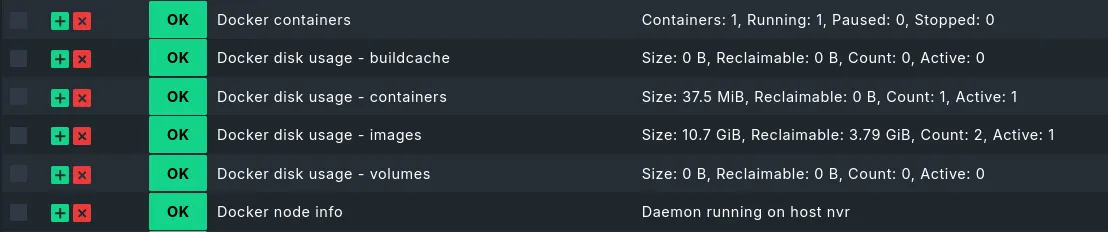
user@nvr ~/Downloads> install -m 0755 mk_docker.py /usr/lib/check_mk_agent/pluginsGo to your Checkmk UI and rescan the host’s services. You should now see Docker-related services:
Checkmk Docker plugin on host
Finally, you can add the individual Docker container as its own host, if you wish.
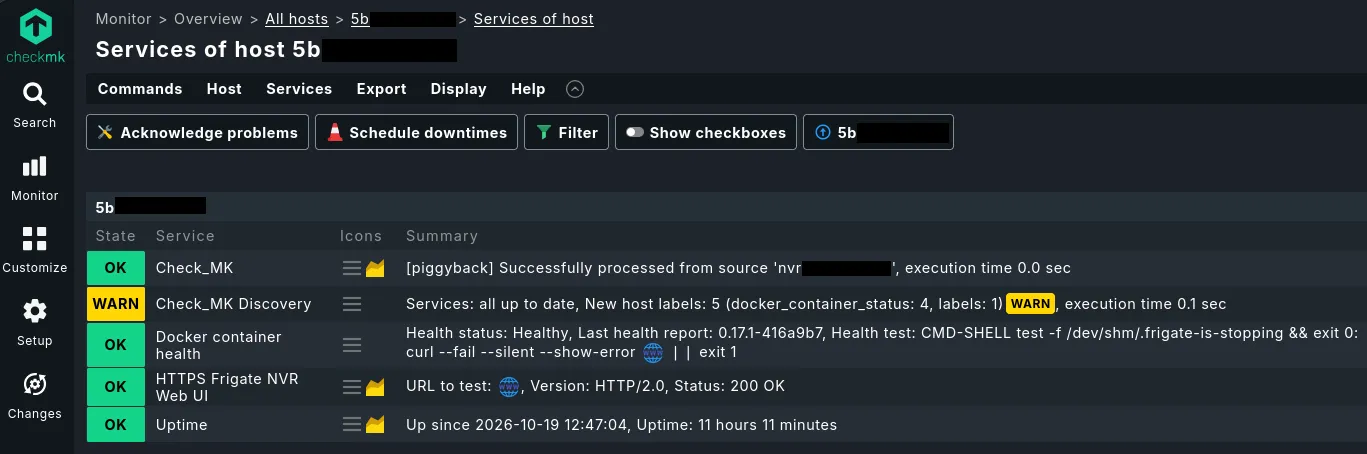
Per the Checkmk documentation linked earlier, the default hostname for piggyback data is the container ID.
All you need to do is create a new host using that string as the hostname.
However, since this ID can change, I recommend editing or creating (on the monitored host) /etc/check_mk/docker.cfg:
[DOCKER]
container_id: name
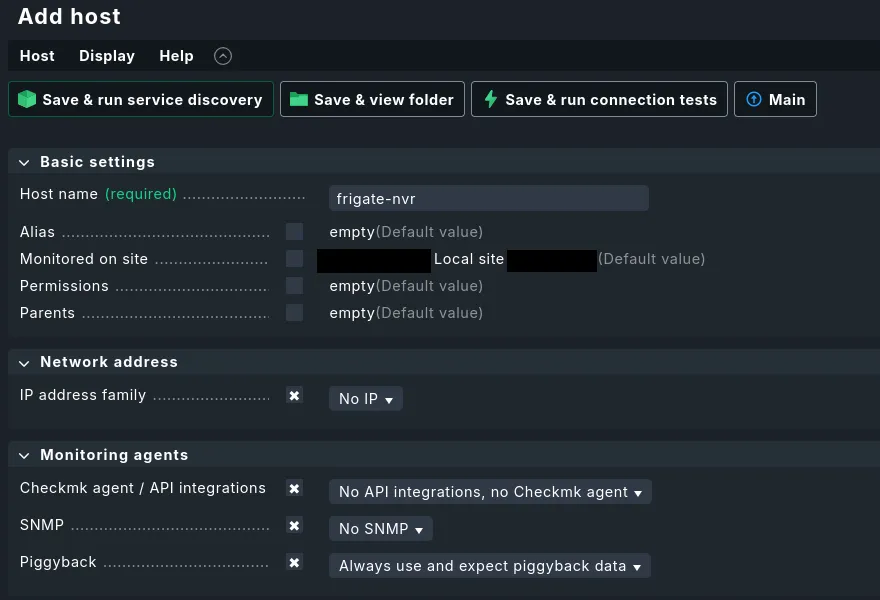
Write the file and add the host in Checkmk as the container name. Set “No IP”, disable agent integration and SNMP, and set it to expect piggyback data always. Then run service discovery.
Checkmk Docker host config
Checkmk Docker container plugin
Postmortem
Why did this happen?
- Assumptions about Frigate’s configuration
- Complacency
- Lack of monitoring/setup validation
First, I incorrectly assumed that Frigate would manage the space it was given more intelligently. Totally my fault, because I did explicitly bind two separate directories for “config” and “footage”. On my TrueNAS system, I configure every container and application to use discrete datasets for configs, database, metadata, etc. Why not here?
Second, I incorrectly assumed that past performance guaranteed future results. The system has been live for around 8 months and has filled up the drive and written over old data several times with no issue. In fact, even in retrospect, I’m a bit surprised it took this long to break.
Third, I set up inadequate monitoring that could only see issues with the base system. Checkmk didn’t have the Docker plugin set up, didn’t perform an HTTP check against the Frigate web UI, and didn’t query the ZFS datasets. Since the ZFS dataset was expected to always be over 80% full, and always overwriting itself, I didn’t want endless notifications about “running out of space”. If I hadn’t made the first mistake, it would have been very easy to enable monitoring for the individual datasets when setting up Checkmk.
How will I avoid things like this happening in the future?
The system should have been configured with a separate dataset for the config/database from the start. When setting up applications I will take more time to consider the storage topology - not only what is necessary for performance, but what could be useful when exposed as metrics.
Monitoring should be appropriate for the use case. Because I didn’t set up dataset monitoring, I should have configured Docker monitoring, or at bare minimum an HTTP check of the Frigate web server. I had no insight into service degradation at the application layer.
Something that could help is building a checklist for new system deployments or for new monitoring agents to help me decide how closely to monitor the system, what parts of it to monitor, etc.
Conclusion
I hope you found this useful and/or interesting. People will always make mistakes - the question is how quickly we can recover from them. Feel free to reach out with any question or corrections using the contact form.
I’ve copied out a fragment of this blog post on using netcat into a new doc, and added a section on configuring the Docker plugin to the Checkmk doc: